

Signing in
Both the CRM and the Portal use the same way of signing in: a magic link. You type your email, press a button, and a one-time sign-in link arrives in your inbox a few seconds later. Click it, and you are in. There is no password to remember and nothing to reset.
The office invites every account by hand. Nobody can sign themselves up. If you type an address that was never invited, the system politely says so instead of letting a stranger in.
Signing in to the CRM
Section titled “Signing in to the CRM”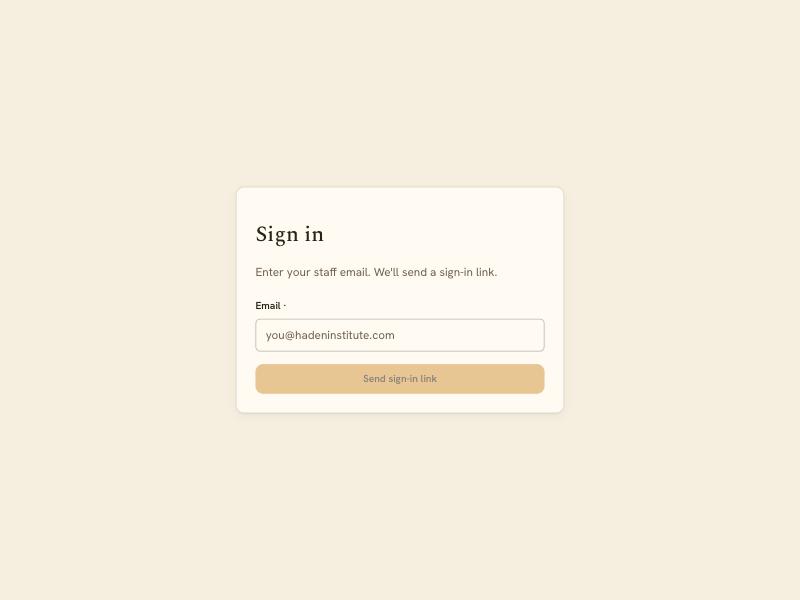
- Go to hadeninstitute-crm.com.
- Type the email the office uses for you — usually your
@hadeninstitute.comaddress — and press Send sign-in link. - Open the email that arrives from Haden Institute. It says “Confirm your signup” or “Here’s your sign-in link”. The design matches the rest of Haden — bone paper, amber labyrinth, warm umber ink.
- Click the big ochre button inside. The CRM opens straight to the dashboard.
The link is one-use and expires after an hour. If you don’t click it in time, go back to the sign-in page and ask for another.
Signing in to the Portal
Section titled “Signing in to the Portal”Same idea, different front door.
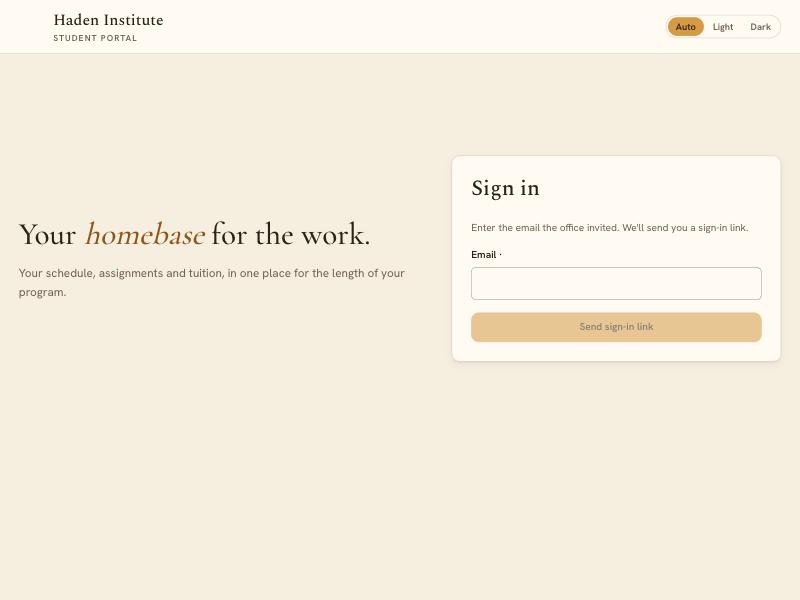
- Go to haden-portal.pages.dev.
- Type the email that the office invited.
- Click the link in the email that arrives.
If you are a student, the portal lands on your Homebase: your next gathering, your assignments, your tuition, and (if you have earned one) your certificate.
If you are an admin or office staff, the portal lands on a short page that says “Staff view coming” with a link back to the CRM. A full mentor-and-admin experience in the portal is coming later.
If you are a mentor, the portal lands on your Home: the submissions waiting on you, how each of your students is doing, and the next session on your calendar.
Which inbox is which
Section titled “Which inbox is which”Every system email we send comes from a Haden address. If you have both roles — you work in the office and you are a student — your email will carry two kinds of magic links in it:
- Links to hadeninstitute-crm.com take you into the CRM.
- Links to haden-portal.pages.dev take you into the Portal.
The two addresses never share a session, so you can be signed in to both at once in different tabs. Many on the office team do.
Switching between admin and student (or mentor) identities
Section titled “Switching between admin and student (or mentor) identities”You use the same email for every role you hold. The system figures out who you are from your invitations:
- An admin sees everything in the CRM. In the portal, they see the temporary Staff view coming card.
- A staff teammate sees the CRM’s office tools (contacts, inbox, cohorts, applications). In the portal, they get the same holding card.
- A mentor sees the portal’s mentor side. They don’t have CRM access.
- A student sees the portal’s student Homebase. They have no CRM access and no mentor view.
To change what role an email holds, open Team in the CRM and send a fresh invitation at the new role.
Signing out
Section titled “Signing out”In the CRM, click your name in the bottom-left of the sidebar, then Sign out. In the Portal, click Sign out in the top navigation. The next person who opens the app will see the sign-in page.
If a link doesn’t arrive
Section titled “If a link doesn’t arrive”Four things to try, in order:
- Check your spam folder. Magic-link emails from new senders sometimes land there the first time. Mark one as Not spam and the next will come straight through.
- Wait a full minute, then ask for another. The sign-in page has a short rate limit so people can’t flood it — if you ask twice in a few seconds, the second request is quietly ignored.
- Confirm the email the office invited. If you try to sign in with a different address — a personal Gmail instead of your office address, say — the system will say it can’t find an account. Ask the office which address they used.
- Write to [email protected]. An admin can re-send the invitation, change the email on your account, or confirm the account exists.
Next: Dashboard — the CRM’s front door.